What a Fake Microsoft Support Call Is Trying to Get From You
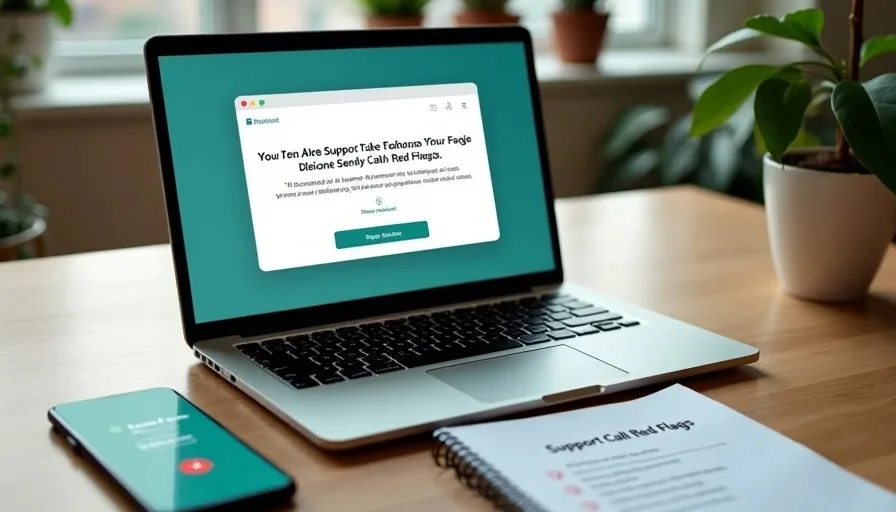
The call usually begins with a sense of urgency. A recorded message or a live person claims to be from Microsoft Support. They say your computer has a virus, your license is about to expire, or unusual activity has been detected on your account. They already know your name or a recent purchase, which makes the story feel more believable. The caller then asks you to sit at the computer and follow instructions.
These calls are not technical support. They are social-engineering attempts designed to extract one or more of three things: remote control of the computer, login credentials, or money. Understanding exactly what the scammer wants makes the conversation easier to end.
What the Scammer Actually Wants
1. Remote access to the computer
The most common goal is to persuade you to install remote-access software (AnyDesk, TeamViewer, Quick Assist, or similar tools). Once the software is running and the scammer is connected, they can see the screen, control the mouse and keyboard, and browse files. From there they may install malware, steal saved passwords, or locate financial documents. Some will open the password manager or browser password list while keeping the victim on the phone so the activity looks like “repair work.”
2. Account credentials
Callers often ask for Microsoft account passwords, email passwords, or one-time security codes. They may claim they need the code to “verify ownership” or “unlock the license.” In reality the code is used to take over the account. Once they control the Microsoft account they can reset other linked services, access Outlook or OneDrive, and lock the real owner out.
3. Payment for fake services or gift cards
A frequent ending is a demand for payment to “fix” the problem or renew a license. Scammers prefer gift cards (Microsoft, Apple, Google Play, Steam) or wire transfers because the money is difficult to recover. They may also push a subscription to a fake security service that continues billing long after the call ends.
Many calls attempt all three goals in sequence: first remote access, then credentials, then payment.
How the Call Is Structured
The pattern is consistent enough that it becomes recognizable.
Opening claim of authority. The caller states they are from Microsoft Support, Windows Support, or a partner technical team. They may reference a pop-up that appeared on the computer or a license number.
Creation of urgency or fear. A virus is “actively stealing data,” the computer will be blocked within hours, or legal action is threatened for pirated software.
Request to sit at the computer. This moves the victim into a position where they can be guided to download software or read codes aloud.
Guided installation of remote tools. The caller walks the victim through downloading and running remote-access software, then asks for the connection ID or code.
On-screen “proof.” Once connected, the scammer may open event logs or run commands that look technical and alarming to a non-expert. These are usually normal system messages presented as evidence of infection.
Extraction. Passwords, security codes, or payment are requested under the cover of completing the repair.
Real Microsoft support does not make unsolicited calls about viruses or license problems. Microsoft does not ask for remote access through cold calls, and it does not demand gift-card payment.
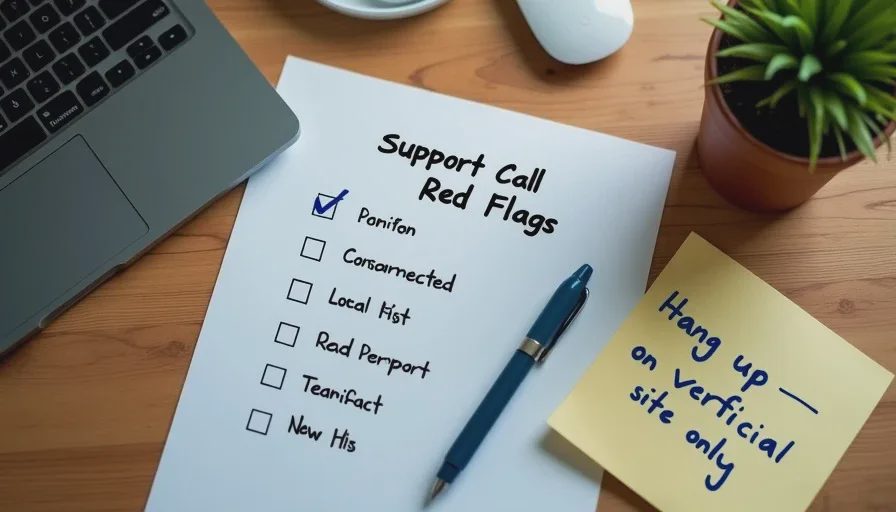
Clear Signs the Call Is Fake
The call is unexpected. You did not contact Microsoft first.
The caller already claims knowledge of a virus or problem you have not reported.
You are asked to download remote-access software.
You are asked to read a security code or password aloud.
Payment is requested by gift card, wire transfer, or cryptocurrency.
The caller becomes aggressive or threatening when questioned.
The support number on the caller ID does not match the official Microsoft support numbers published on microsoft.com.
Any one of these signs is sufficient reason to hang up.
What to Do When the Call Arrives
Hang up. Do not continue the conversation to be polite.
Do not download or run any software the caller requested.
If you already gave remote access, disconnect the computer from the internet immediately (unplug the Ethernet cable or turn off Wi-Fi). Then uninstall the remote-access application.
If you shared a password or security code, change the password from a different device and review account activity. Enable or confirm multi-factor authentication.
If you paid with a gift card or wire transfer, contact the gift-card issuer or bank immediately and report the fraud. Recovery is often limited, but prompt reporting is still required.
Tell other household members what the call sounded like so they are less likely to engage with a similar one.
If a pop-up on the computer triggered the concern, do not call the number shown on the pop-up. Restart the computer and run a scan with the built-in security tools (Windows Security or the Mac equivalent). Real problems are handled through the official support channels listed on the Microsoft website, not through unsolicited phone calls.
Why These Calls Persist
The scam requires almost no technical infrastructure—only phone numbers, a script, and widely available remote-access tools. Even a low success rate is profitable. Older adults and people who are less comfortable with technology are frequent targets because the technical language and urgency are more effective, but the same script is used against every age group.
Households that treat every unexpected support call as fraudulent until proven otherwise close the door on the large majority of these attempts. The three goals—remote access, credentials, and payment—are consistent. Once they are recognized, the call loses its power.
A real technical problem with a Microsoft product can be addressed through the official website or the support options inside Windows or Office. An unsolicited call claiming to be Microsoft Support is almost never that channel. Hanging up is the correct first step.
Make the safer choice the easier choice by deciding in advance that unexpected support calls are not trusted. That single decision prevents the rest of the script from unfolding.
Public Wi-Fi: What It Protects, What It Does Not, and When to Use Cellular Data
This is the last
→
Comments
Leave a comment
No comments yet.