The First-Hour Plan After a Phishing Link Is Clicked
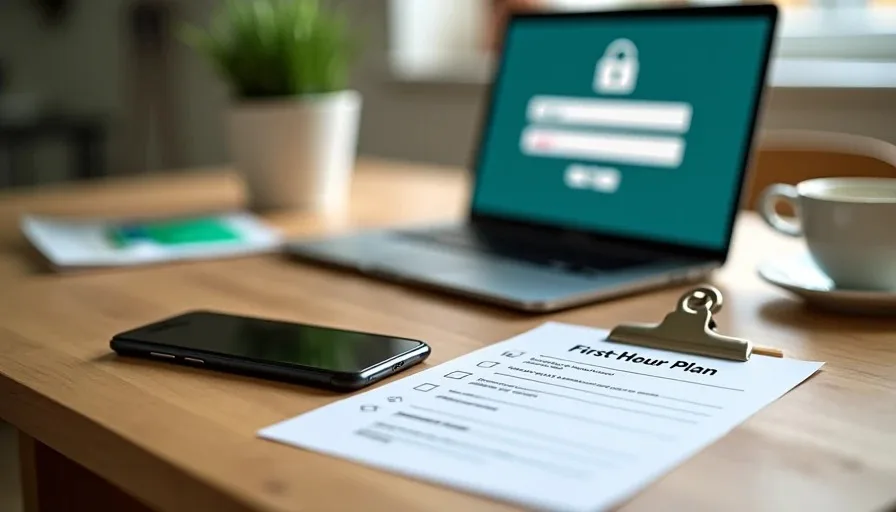
Someone in the family clicked a link. The message looked real—package delivery, bank alert, Microsoft or Apple notice, school portal, even a text that seemed to come from a relative. The page asked for a login or a quick verification. Now the worry sets in.
Panic is the enemy here. Most phishing clicks do not immediately empty accounts or lock devices. What happens in the next sixty minutes largely determines how much trouble follows. The plan below is the exact sequence I give households. It is ordered by impact and designed so a non-technical person can follow it without making things worse.
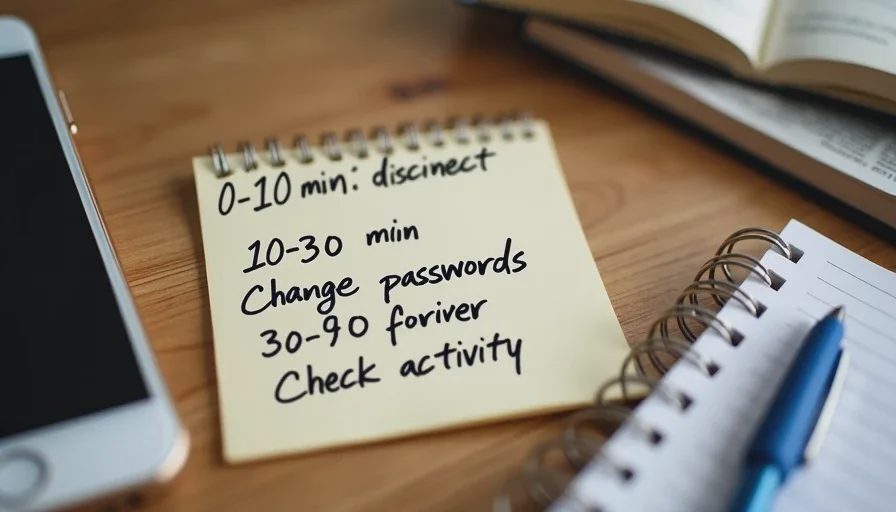
Minute 0–10: Stop the Bleeding
Disconnect the device from the internet.
Turn off Wi-Fi and cellular data on the phone or laptop that clicked the link. If it is a computer, unplug the Ethernet cable. This limits what any malicious code can still send or receive.Do not enter any more information on that device.
Close the browser tab or app. Do not try to “log out” or “cancel” on the suspicious page. Do not open other accounts from the same device until it is cleaned or checked.Tell one calm adult in the household what happened.
A second person reduces the chance of rushed mistakes. Write down the exact time, the sender of the message, and what the page asked for. That information helps later.
These three steps take almost no technical skill and immediately reduce further exposure.
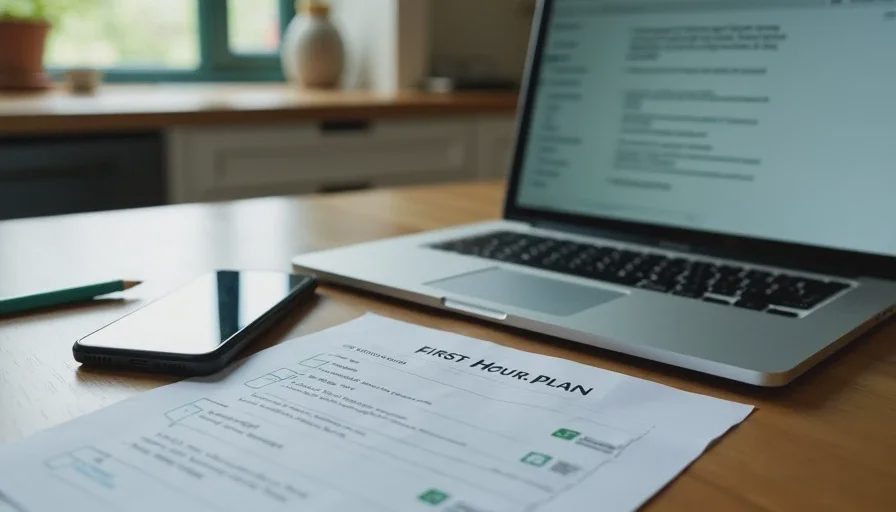
Minute 10–30: Secure the Most Important Accounts from a Clean Device
Use a different device that did not click the link—another phone, a tablet, or a computer that was not involved. If no other device is available, the clicked device can still be used after it is disconnected, but a clean device is safer.
Change the password on the primary email account first.
Email is the master key. Almost every other account can be reset through it. Use a strong, unique password from your password manager. If you do not yet have a password manager, create a long unique password and write it down temporarily in a secure place.Turn on or confirm multi-factor authentication (MFA) on that email.
Prefer an authenticator app or passkey over SMS when the option exists. Do the same for banking, Apple ID or Google account, and any cloud storage that holds photos or documents.Change passwords on financial and high-value accounts next.
Banks, credit cards, investment accounts, and major shopping sites that store payment methods. Again, unique passwords and MFA.Check recent account activity.
Look at login history, recent orders, password-change notifications, and any new devices or sessions. Sign out of unknown sessions. Most major platforms show this under Security or Account Activity.
If the phishing page asked for banking credentials or a one-time code, call the bank’s official fraud number (the one on the back of the card or the official website—not a number from the suspicious message) and report the incident. Many banks can place a temporary hold or extra monitoring within minutes.
Minute 30–60: Contain, Document, and Decide Next Steps
Run a security scan if the device is a computer.
Use the built-in Windows Security or macOS tools, or a reputable scanner you already trust. On a phone, the risk of persistent malware from a simple phishing page is lower, but still update the operating system and review recently installed apps.Review app permissions and connected apps.
On the email and main accounts, revoke any new or unfamiliar third-party app access. Phishing pages sometimes trick people into granting broad permissions.Save evidence.
Take screenshots of the original message, the fake page (if still open on the disconnected device), and any account alerts. Note the time and what was entered. This helps if you later need to dispute charges or report the incident.Decide whether the clicked device needs a deeper clean.
For most simple phishing pages that only asked for a password, changing the credentials is enough. If the page prompted a download, asked for remote-access permission, or the device now behaves oddly, consider a factory reset after backing up essential data, or take it to a trusted technician.Alert the rest of the household.
Tell other family members the type of message that arrived so they are less likely to click a similar one. Do it without blame. The goal is shared awareness, not shame.
What Not to Do in the First Hour
Do not click any “security” links that arrive by email or text right after the incident. Scammers often follow up with fake help.
Do not pay any money or buy gift cards because a pop-up or caller claims it will “unlock” the account.
Do not give remote-access software control to anyone who calls claiming to be from Microsoft, Apple, or your bank.
Do not wait days “to see what happens.” The first hour is when password changes and MFA still block most follow-on damage.
After the First Hour
Monitor financial accounts for the next one to two weeks. Consider a credit freeze if sensitive identity information (Social Security number, full date of birth, etc.) was entered. Update the household password-manager and recovery-code sheet if anything changed. When everyone is calmer, review how the message arrived and what made it look legitimate—this becomes the family’s living lesson.
Most phishing clicks end with nothing worse than a password change and a scare when the response is fast and orderly. The first-hour plan above is designed to make that orderly response the default instead of an improvisation under stress.
Make the safer choice the easier choice even after a mistake. A clear, short sequence keeps the damage small and the household steady.
How to Secure a Teenager’s First Smartphone Without Overreaching
This is the last
→
Comments
Leave a comment
No comments yet.