The Household Digital Safety Baseline: What to Set Up First
Most families do not need a complicated security system. They need a short list of durable habits that close the doors attackers actually use. Password reuse, missing multi-factor authentication, unpatched devices, and an open home network account for the majority of everyday compromises. The rest is noise.
This baseline is the set of steps I recommend first to any household that wants better protection without turning technology into a second job. It takes a focused weekend for most people. After that, maintenance is light. The goal is not perfection. The goal is making the safer choice the easier choice so the habits stick.
The Five Baseline Layers
Think of these as the digital equivalent of locking the front door, keeping a spare key offline, and testing the smoke detector once a year. Each layer reduces a different common failure.
Layer 1: Unique Passwords and a Manager
Password reuse remains the single highest-impact problem in household security. One breach on a shopping site or an old forum becomes a key to email, banking, and school portals when the same password appears elsewhere.
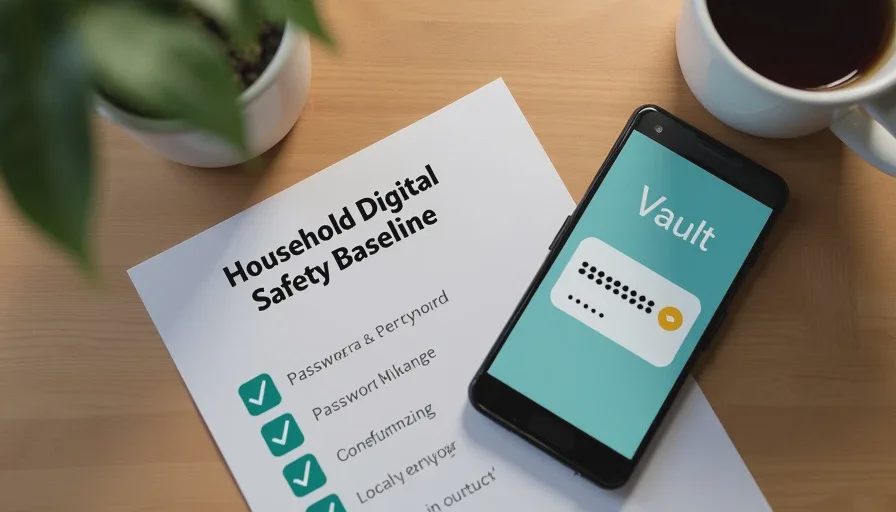
A password manager solves this by generating and storing long unique passwords for every account. You remember one strong master password. Everything else lives inside the vault. Free and paid options both work for families; the important part is that every adult and older teen uses one consistently.
Start with the accounts that unlock everything else: primary email, banking or credit cards, Apple or Google account, and any cloud storage that holds photos or documents. Change those first. Then work through the rest as time allows. Store recovery codes offline—printed or written—in a place the whole family can find in an emergency but a casual visitor cannot.
Risk level without this step: high. A single data breach can cascade across the household.
Layer 2: Multi-Factor Authentication
A password alone is no longer enough for important accounts. Multi-factor authentication (MFA) adds a second check—usually a code from an authenticator app, a prompt on a trusted phone, or a passkey. Even if someone steals the password, they still cannot sign in.
Prefer an authenticator app or passkeys over text-message codes when the option exists. SMS codes can be intercepted through SIM-swap attacks. Start again with email and banking. Then enable MFA on social media, cloud storage, and any account that can reset other accounts.
Many families delay this step because it feels inconvenient. The first setup takes a few minutes per account. After that, the daily friction is small and the protection is large.
Risk level without MFA on key accounts: high. Stolen passwords become usable.
Layer 3: Automatic Updates
Software updates close known holes. Attackers scan for devices running outdated operating systems and apps. Turning on automatic updates removes the need to remember.
Enable them on every phone, tablet, laptop, and browser. Check shared or older devices once a month—game consoles, smart TVs, and school tablets often lag. For the router, look for a firmware update option and turn on automatic updates if the model supports them.
An outdated laptop or phone is not a bargain. It is a security problem waiting for the next widely known vulnerability.
Risk level of skipping updates: medium to high, depending on how old the device is and how widely it is used.
Layer 4: Basic Router and Network Hardening
Every device in the house connects through the router. A default admin password, old firmware, or a single open network puts the entire household on the same level of exposure.
Do these five things once:
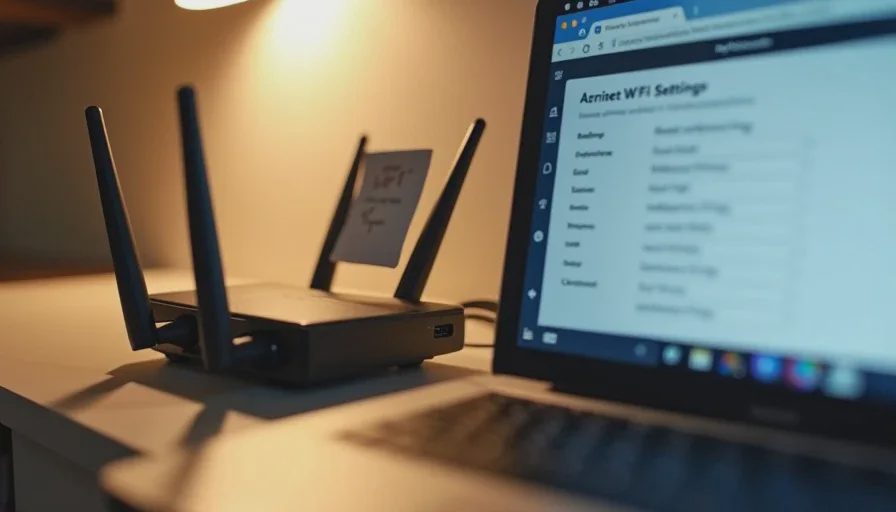
Change the router’s admin password (the one that lets you into the settings page, not the Wi-Fi password). Use a long unique one and store it in the password manager.
Update the firmware and enable automatic updates if available.
Set Wi-Fi security to WPA3 if every device supports it; otherwise use WPA2-AES.
Create a guest network and move visitors plus smart-home devices (TVs, speakers, cameras, thermostats) onto it. This keeps a compromised gadget from reaching phones and laptops that hold bank logins.
Disable WPS and remote administration unless you actively need them.
These changes take under an hour for most ISP-supplied or consumer routers. The guest network is the step families skip most often and the one that delivers the biggest isolation benefit.
Risk level of an untouched default router: medium to high. It is a single point of failure for the whole house.
Layer 5: Simple, Tested Backups
Photos, schoolwork, tax records, and scanned documents disappear in hardware failures, theft, or ransomware. A backup that no one has ever tested is not a backup.
For most families a practical version of the 3-2-1 idea works: keep important files in at least two places, one of them not on the same device. Cloud backup of photos plus an external drive for documents is enough for many households. The critical part is confirming the backup actually contains recent files and that someone in the family knows how to restore from it.
Test once a year. Restore a handful of photos or a document. If it works, you are done until the next check.
Risk level without backups: high for irreplaceable data, lower for replaceable accounts.
How to Roll This Out Without Overwhelm
Do not try to finish everything in one sitting. Sequence matters more than speed.
This weekend (roughly two hours):
Install a password manager. Secure the primary email and banking accounts with unique passwords and MFA. Turn on automatic updates on the phones and computers everyone uses daily. Change the router admin password and create the guest network if you have time.
This month:
Work through remaining important accounts. Finish router firmware and Wi-Fi settings. Set up the backup for photos and key documents. Review recovery options and write down the offline codes.
Ongoing:
Ten to fifteen minutes once a month is enough. Confirm updates ran. Glance at the password manager for any weak or reused entries it flags. Check that the latest photos appeared in the backup.
Keep a simple printed sheet or shared note with the location of recovery codes, the password-manager master-password hint (not the password itself), and the person to call if something goes wrong. This is the household version of the emergency contact list on the refrigerator.
What This Baseline Does Not Include
It does not require paid antivirus on every device if the built-in protections (Windows Security, Apple’s tools, Google Play Protect) are turned on and updated. It does not demand a VPN for ordinary home use. It does not turn parental controls into constant surveillance. Those tools have their place and will appear in later articles when they solve a specific problem.
The baseline also does not replace common-sense habits around unexpected messages and urgent requests. No amount of technical setup protects a family that transfers money because a text claimed to be from a grandchild in trouble. Pair the technical steps with one household rule: any urgent request involving money, account changes, or personal information gets verified through a second, previously known channel.
This is the foundation. Once it is in place, the rest of the site’s guidance—family device setup, scam response, privacy settings, and maintenance routines—builds on solid ground instead of sand. Most households that complete these five layers already sit ahead of the majority of homes that have done nothing systematic.
Start with the accounts and the router. The rest becomes easier once those doors are closed. Make the safer choice the easier choice, and the baseline will hold.
The Privacy Settings I Check on Every New Family Phone
This is the last
→
Comments
Leave a comment
No comments yet.