A Backup Plan for Families Who Keep Losing Photos

Family photos are among the few digital things that cannot be replaced. Yet most households treat them as if they will always be there. Phones fill up, get replaced, fall in water, or get factory-reset during troubleshooting. Cloud accounts fill or change ownership. An old laptop is wiped before anyone checks the Pictures folder. The result is the same: entire years of everyday life disappear.
A working backup plan does not require expensive software or perfect discipline. It requires three reliable copies of the photos that matter, stored in different places, with one method that runs automatically and one that you control. The plan below is the one I give families who keep saying “we really should back up the photos.” It is designed for real households with multiple phones, limited time, and no interest in becoming IT administrators.
Why Most Family Photo Backups Fail
Three patterns cause the majority of losses:
Only one copy exists. The photos live only on the phone or only in one cloud account. When that device or account fails, everything is gone.
The backup is never tested. People assume the cloud or the external drive is working. Years later they discover the backup stopped, the drive failed, or the account was set to “optimize storage” and the originals were removed.
Too many partial systems. Mom’s phone backs up to iCloud, Dad’s to Google Photos, the old laptop has a folder from 2019, and the kids’ tablets have nothing. No one knows which set is complete.
The fix is not more tools. It is a short, written plan that every adult in the household understands and that requires almost no ongoing effort after the first setup.
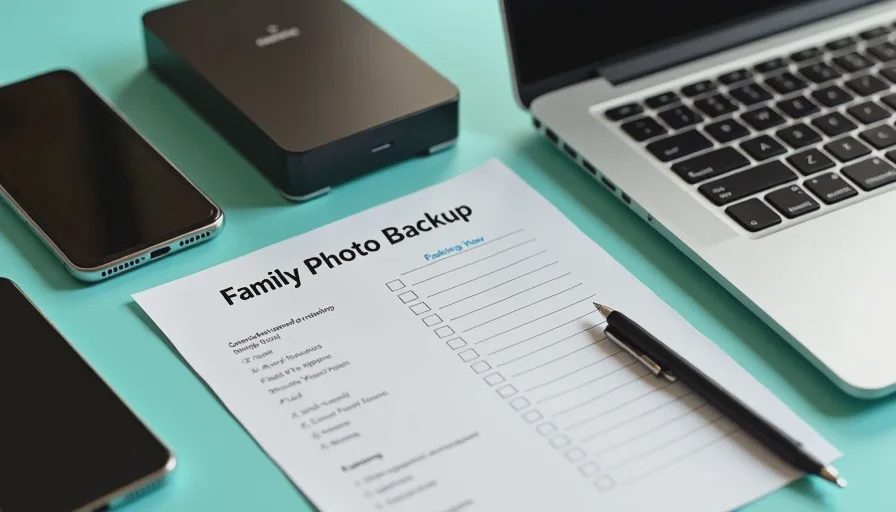
The Practical Three-Copy System
Aim for three copies of the important photos:
Copy 1: The original on the phone (or the working library on a computer).
Copy 2: An automatic cloud backup that runs without anyone thinking about it.
Copy 3: A local copy you control—an external hard drive or a second computer—that is updated periodically and can be restored even if the cloud account is locked or deleted.
This is a simplified version of the classic 3-2-1 rule adapted for families. You do not need three different media types or an off-site safe deposit box to start. You need the three copies and the habit of checking them once a year.
Step 1: Turn On Automatic Phone Backups (Copy 2)
Every modern phone can back up photos automatically.
iPhone: Settings > [your name] > iCloud > Photos > turn on iCloud Photos. For a more controlled approach, use iCloud Photos with “Download and Keep Originals” on at least one computer, or regularly export from the Photos app.
Android: Open Google Photos > profile icon > Photos settings > Backup > turn Backup on. Confirm it is set to “High quality” or “Original quality” according to your storage preference.
Do this on every phone that takes family photos, including the kids’ devices if they have their own. Check that the backup is actually running by looking at the last backup time or by confirming recent photos appear in the cloud account on another device.
If storage is limited, decide which accounts will keep original quality and which can use compressed versions. Original quality is worth the space for the main family phones.
Step 2: Create One Local Master Copy (Copy 3)
Choose one external hard drive (or a dedicated folder on a home computer that is itself backed up). Once a month, or at least every few months, copy the new photos from each phone or from the cloud library onto that drive.
A simple routine that works:
Plug in the drive.
Create a folder for the current year (or year-month).
Export or copy the new photos from each phone or from the cloud.
Eject the drive safely and put it back in its drawer.
You do not need fancy backup software for this. The built-in file copy tools on Windows, macOS, or even the phone’s own export options are enough. The important part is that the drive is separate from the phones and from the cloud account.
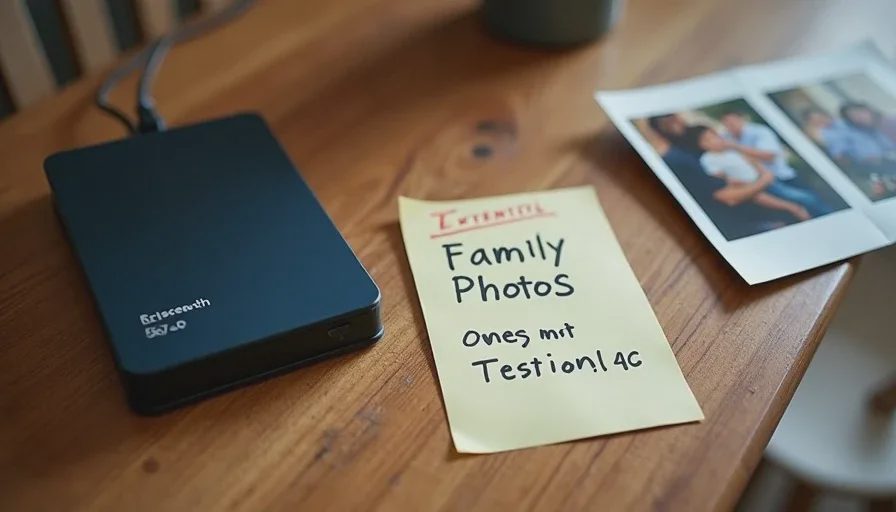
Label the drive clearly (“Family Photos 2023–present”) and store it somewhere dry and easy to find. If you want extra safety later, you can keep a second external drive at a relative’s house or in a safe, but one solid local copy already dramatically reduces risk.
Step 3: Decide What “Important” Means
Not every screenshot and meme needs three copies. Most families do well by defining a simple rule:
Keep original-quality backups of photos and videos that show people, places, or events the family cares about.
Screenshots, temporary images, and low-value downloads can stay on the phone or in a single cloud account.
This keeps storage costs and time reasonable. Review the rule once a year when you do the backup test.
The Yearly Test (The Step Almost Everyone Skips)
A backup that has never been restored is only a hope. Once a year—pick a date that is easy to remember, such as the first weekend of January or right after the holidays—do the following:
Confirm that recent photos from every phone appear in the cloud account.
Plug in the external drive and open a few folders. Make sure files open and look correct.
Practice restoring a small set of photos to a phone or computer. Delete a non-critical photo (or move it) and then bring it back from the backup. This proves you actually know how to restore.
Note any problems (drive not recognized, cloud storage full, photos missing from one phone) and fix them the same day.
The entire test takes thirty to sixty minutes. Write the date of the last successful test on a sticky note on the drive or in the family password sheet.
Handling Special Situations
Multiple adults and children with phones: Make one person the “photo captain” responsible for checking that backups are running and for doing the monthly local copy. Rotate the role if needed, but assign it.
Old devices and computers: Before wiping or giving away an old phone or laptop, search for Photos, DCIM, Pictures, and any external drive folders. Copy everything that looks like family photos onto the master drive first.
Cloud account changes or shared accounts: If a couple shares an Apple ID or Google account and later separates, or if a child ages out of a supervised account, export the photos before the account relationship changes. Do not assume the photos will remain accessible.
Large video files: Videos fill storage faster than photos. Decide whether to keep original quality or a compressed version for the long-term archive. Many families keep original quality for short clips of important events and accept compressed versions for everyday video.
What This Plan Does Not Require
It does not require a paid backup service beyond the cloud storage you may already have. It does not require RAID arrays, network-attached storage, or daily manual work. It does not require every photo ever taken to be treated as irreplaceable.
It does require the initial setup of automatic phone backups, one external drive, a short written note of where everything lives, and one yearly test. Those four things turn “we should really back up the photos” into a system that actually protects them.
Family photos are the everyday record of people and moments that will not come again. A simple, tested plan is the difference between keeping that record and losing years of it to a single broken phone or full cloud account. Set the automatic backups this week, buy or designate the external drive, and put the yearly test on the calendar. The safer choice becomes the easier choice once the system is running.
Antivirus, Updates, and Built-In Protection: What Most Families Actually Need
This is the last
→Comments
Leave a comment
No comments yet.