The Privacy Settings I Check on Every New Family Phone
A new phone is the best moment to set privacy boundaries. The setup screens are still fresh, the apps have not yet collected a history, and no one has already accepted every permission prompt out of habit. Once the device is in daily use, those prompts become background noise and the defaults stay.
I treat every new family phone—adult, teen, or child—the same way. I open the privacy menus before the first weekend of photos, maps, and messaging. The list below is the exact order I follow. It is not exhaustive. It closes the settings that leak the most useful information with the least effort from the user.
Location First: The Highest-Impact Setting
Location data paints a clear picture of home, school, work, and routines. Many apps request it “for better service” and then keep access in the background long after the feature is no longer needed.
On an iPhone I go to Settings > Privacy & Security > Location Services. I leave Location Services on because maps, weather, and Find My need it. Then I open every app on the list and set the least permissive option that still works:
Never for games, shopping, social apps, and anything that does not need maps.
While Using the App for navigation, rideshare, and local services.
Ask Next Time for anything I use rarely.
I also turn Precise Location off for apps that only need a general area. Approximate location is enough for most weather and store-finder tools.
At the bottom of the same screen I open System Services. I leave Find My iPhone and Emergency Calls on. I turn off Location-Based Apple Ads, Location-Based Suggestions, and Significant Locations unless the family specifically wants those features. Significant Locations builds a private history of places the phone visits frequently; most households do not need it.
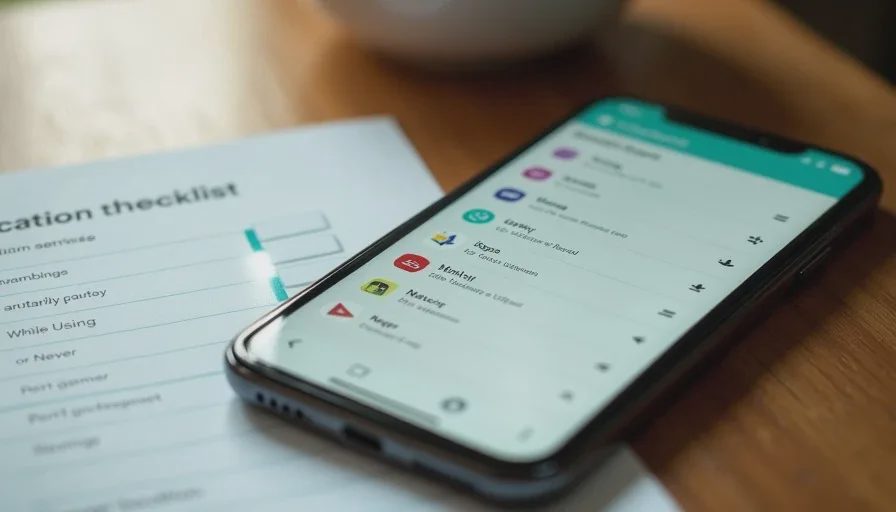
On Android the path is Settings > Location > App location permissions (wording can vary slightly by manufacturer). I set most apps to “Allow only while using the app” or “Don’t allow.” I keep precise location off unless the app truly needs street-level accuracy.
For a child’s phone I also decide whether location sharing with parents stays on through Family Sharing or Family Link. That is a family safety choice, not an advertising choice. I leave it on only for the built-in family tools and turn it off for every third-party app.
Risk level of leaving location on “Always” for dozens of apps: high. The data is detailed, continuous, and valuable to advertisers and anyone who later gains access to the account.
App Tracking and Advertising Identifiers
Both platforms now require apps to ask before tracking activity across other companies’ apps and websites. The default prompt appears the first time an app wants that permission. Most people tap Allow because the request looks routine.
On iPhone I go to Settings > Privacy & Security > Tracking and turn off Allow Apps to Request to Track. That single switch stops the prompts and blocks the tracking requests. Existing permissions stay on the list so I can review them later if needed.
On Android I open the Google account settings (or Settings > Privacy > Ads) and reset the advertising ID, then turn off ad personalization. The exact labels change with Android versions, but the goal is the same: stop the persistent identifier that follows the phone across apps.
This setting does not break core functions. It only limits the cross-app profiling that most families never intended to allow.
Risk level of leaving tracking open: medium to high over time. The data is used for advertising profiles that can later be combined with other sources.
Camera, Microphone, Photos, and Contacts
These four permissions appear constantly during the first week of setup. A social app wants contacts “to find friends.” A shopping app wants the camera “to scan products.” A flashlight app somehow wants the microphone.
I open the category lists rather than hunting app by app:
iPhone: Settings > Privacy & Security, then Camera, Microphone, Photos, Contacts, Bluetooth, and Local Network.
Android: Settings > Privacy > Permission manager (or Security & privacy > Permission manager).
For each category I set the default to the minimum the app needs. Camera and microphone stay off for anything that is not a video-call, photo, or recording tool. Photos access is limited to “Selected Photos” or “While Using” whenever the platform offers it. Contacts stay off for games and most social apps; the few that truly need friend-finding can be granted later and reviewed.
Bluetooth and Local Network permissions are easy to overlook. They let apps discover nearby devices. I leave them off unless the app is a speaker, watch, or smart-home controller that cannot function without them.
Risk level of broad camera, microphone, and contacts access: medium. A single compromised or poorly designed app can collect more than intended.
System Analytics, Siri/Google, and Safety Tools
Both platforms offer optional data-sharing that improves their products. I turn most of it off on family phones.
On iPhone I decline analytics sharing during setup and later confirm it is off under Settings > Privacy & Security > Analytics & Improvements. I also check Siri & Search settings and limit “Learn from this App” suggestions if the household prefers less personalization.
On Android I open Google account activity controls and pause or limit Web & App Activity, Location History, and YouTube History unless the family deliberately wants those features for other reasons. For a supervised child account these controls are often managed through Family Link.
iPhone’s Safety Check (under Privacy & Security) is worth a quick look on any adult phone. It gives a single place to review who can see location and shared content and to perform an emergency reset if needed. I do not run it on every new phone, but I note that it exists for later.
The Practical Order I Use
Location Services / App location permissions — set the majority to While Using or Never.
Tracking / Ad personalization — turn the global request off.
Camera, Microphone, Photos, Contacts — strip non-essential access.
System analytics and voice-assistant learning — decline the optional sharing.
Family controls if the phone belongs to a child — Screen Time Content & Privacy Restrictions or Family Link app permissions and location.
The entire pass takes twenty to thirty minutes on a new device. After that I only revisit when a new app is installed or when a family member reports unexpected behavior.
These settings do not make a phone invisible. Maps still work. Family location sharing still works when you choose it. Emergency features remain available. What changes is the quiet background collection that most people never intended to authorize.
Make the safer choice the easier choice at the moment the phone is still new. Once the defaults are tightened, daily use stays convenient and the data that leaves the device is limited to what the household actually needs. That is the privacy baseline I apply to every new family phone.
The Family Digital Safety Baseline: 10 Fixes to Make This Weekend
This is the last
→
Comments
Leave a comment
No comments yet.