The Family Digital Safety Baseline: 10 Fixes to Make This Weekend

Most family digital problems do not need expensive software or constant monitoring. They need a short list of clear settings and one or two household rules that everyone understands. The ten fixes below are the ones I actually walk families through when a new phone arrives, a child starts using a shared tablet, or an older relative needs safer defaults.
You can complete the technical steps in a single weekend. The conversation pieces take a little longer but matter more. Do the settings first so the rules have something solid to rest on.
The Ten Weekend Fixes
1. Create proper child or supervised accounts
Use the real birth date. Apple Family Sharing and Google Family Link apply age-based protections only when the account is set up correctly. An adult Apple ID or Google account given to a child skips those protections.
On iPhone: Settings > Family, then create a child account.
On Android: use the Family Link app to create or convert a supervised account.
2. Turn on Screen Time or Family Link and set a parent passcode
This is the foundation for everything that follows.
iPhone: Settings > Screen Time > turn on, then Content & Privacy Restrictions with a passcode the child does not know.Android: open Family Link on the parent phone and confirm supervision is active.
Keep the parent passcode different from the device unlock code.

3. Require approval for every new app and purchase
“Ask to Buy” on Apple and app-approval controls in Family Link stop surprise downloads and in-app spending. Review the age rating and whether the app allows open chat with strangers before you approve anything.
4. Give every person their own profile on shared devices
Shared tablets and family computers should not run under one adult login. Create separate user profiles (or supervised child profiles) so browsing history, passwords, and permissions stay separate. On Windows and macOS this is straightforward. On tablets, use the built-in multi-user or Family Link options.
5. Limit who can contact the child
Turn on communication safety features that blur explicit images in Messages (available on both major platforms). Restrict contacts where the tools allow it. For younger children, limit messaging to approved contacts only until they are ready for broader access.
6. Decide the family location-sharing rule and enforce it
Location sharing with parents through Find My or Family Link can be useful. Location sharing with apps or public profiles is not. Set the family rule once, then turn off location access for every third-party app that does not need it for core function.
7. Apply content filters at the device and, if possible, the network
Device-level: Content & Privacy Restrictions (Apple) or Family Link filters (Google).
Network-level: many routers or free DNS options such as Cloudflare 1.1.1.3 for Families can filter adult content across every device on the home Wi-Fi, including smart TVs and consoles.
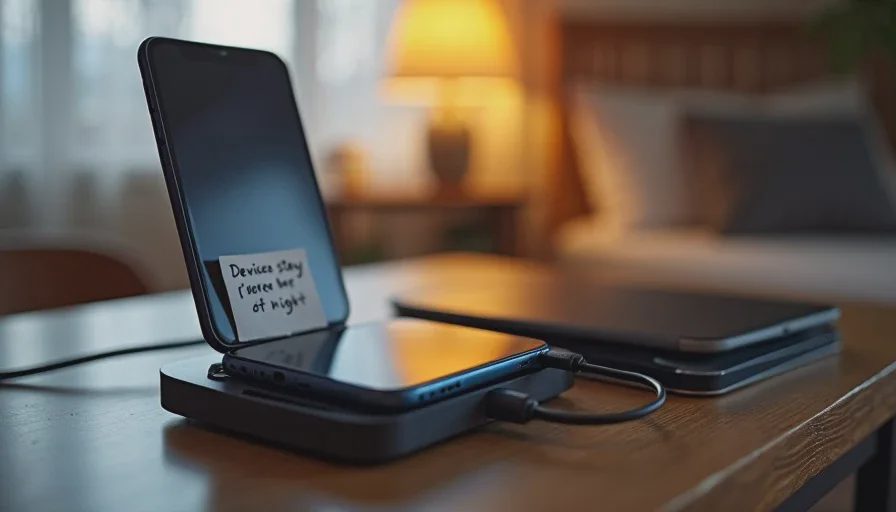
8. Create a household charging station
Devices charge overnight in a common area, not in bedrooms. This single physical rule reduces late-night use, improves sleep, and makes it harder for settings to be changed unnoticed. It also makes the “devices stay in shared spaces during the day” rule easier to keep.
9. Write and post three family technology agreements
Keep them short and specific. Examples that work in real households:
No downloads without asking.
Any urgent message that asks for money, passwords, or personal information gets checked with a parent first.
You will not get in trouble for telling us about something uncomfortable that happened online.
Rules the children helped write are more likely to be followed.
10. Make a one-page recovery plan
List the parent passcodes (stored securely), the location of password-manager recovery codes, which adult can approve account changes, and the phone numbers for the mobile carriers. Keep one printed copy in a safe place and one digital copy that only the adults can reach. This is the family version of the emergency contact list on the refrigerator.
How to Fit It Into a Weekend
Saturday morning (about 90 minutes)
Fixes 1–4: accounts, Screen Time/Family Link, app approval, and shared-device profiles. These are pure setup and do not require long conversations.
Saturday afternoon (about 60 minutes)
Fixes 5–7: messaging limits, location rules, and content filters. Test one or two apps after changing the settings so you know they still work.
Sunday (conversation time)
Fixes 8–10: decide the charging station location, write the three agreements together, and complete the recovery page. The technical work is already done; this part is about clarity and buy-in.
What These Ten Fixes Actually Achieve
They close the most common open doors: unsupervised accounts, unlimited downloads, mixed adult/child profiles, open messaging, background location sharing, and no recovery plan when something goes wrong. They do not require paid monitoring software. They do not turn the home into a surveillance state. They give parents clear levers and children clear boundaries.
After the weekend, maintenance is light. Review new app requests as they arrive. Glance at Screen Time or Family Link reports once a week. Revisit the three agreements every few months or when a child moves to a new age stage.
The safer choice becomes the easier choice when the settings are already in place and the family rules are short enough to remember. That is the family digital safety baseline I recommend starting with.
Five Router Settings Worth Checking Tonight
This is the last
→
Comments
Leave a comment
No comments yet.