Five Router Settings Worth Checking Tonight
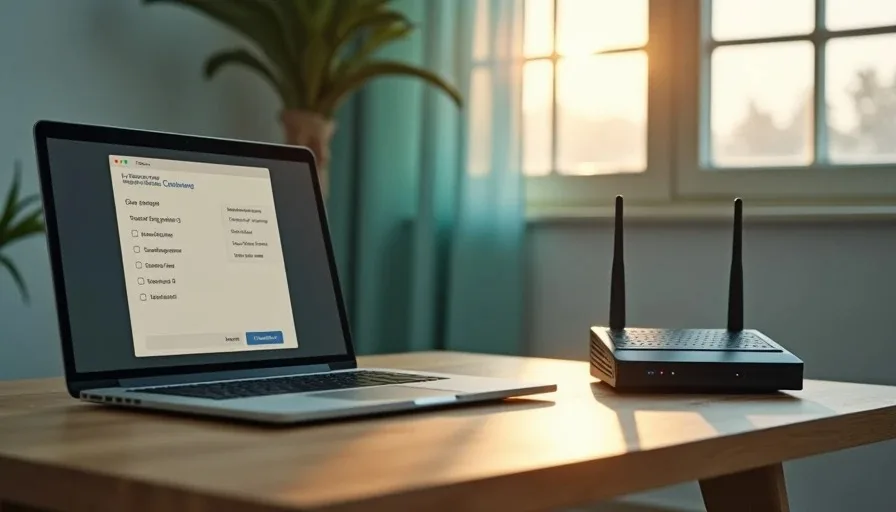
Your router is the front door of every device in the house. Phones, laptops, TVs, cameras, and smart speakers all pass through it. Most of those devices ship with reasonable defaults. The router often does not. Factory settings favor easy setup over long-term safety, and many households never change them.
The five settings below are the ones that deliver the largest improvement for the least time. You do not need networking knowledge. You need the admin login (usually printed on a sticker on the router) and about forty-five minutes. Do them in order. Each one builds on the last.
How to Reach the Settings
Connect a laptop or phone to your Wi-Fi. Open a browser and type the address printed on the router sticker—commonly 192.168.1.1, 192.168.0.1, or a short name such as router.asus.com. Log in with the default username and password also printed on the sticker (or the one you set previously). If you cannot find the sticker, search the model number plus “default login.”
Once inside, the exact menu names vary by brand, but the five items below exist on nearly every consumer router sold in the last several years.
The Five Settings
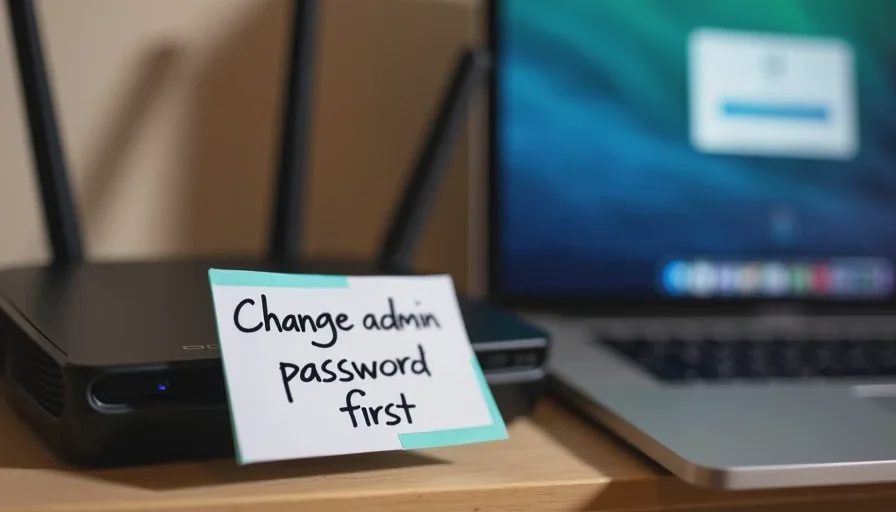
1. Change the Router Admin Password
This is not the Wi-Fi password your family uses to connect. This is the separate password that lets someone into the router’s control panel.
Default admin passwords are published online for every common model. Anyone on your network—or anyone who reaches the router remotely—can look them up in seconds. Change it to a long, unique passphrase and store it in your password manager. Do this first. Everything else is controlled from this panel.
Risk level if left at default: high. It is the master key to the entire network.
2. Set Wi-Fi Encryption to WPA3 (or WPA2-AES)
Open the wireless security section. Choose WPA3 if every device in the house supports it. If older phones or gadgets refuse to connect, use the mixed WPA2/WPA3 mode or pure WPA2-AES. Avoid anything labeled WEP, WPA, or TKIP—these are outdated and weak.
While you are there, set a strong Wi-Fi passphrase (fifteen characters or longer works well). A sentence you can say out loud to a guest is easier to share than a random string of symbols.
Risk level of weak or outdated encryption: high. It is what stops outsiders from reading traffic or joining the network.
3. Update the Firmware and Turn On Automatic Updates
Firmware is the router’s operating system. Manufacturers release patches for known holes the same way phone makers do. An unpatched router is a common entry point for botnets.
Look for a System, Administration, or Firmware section. Check for updates and install any that appear. If the router offers automatic updates, turn them on. If it has not received an update in years, note the model—replacement may be the cleaner long-term fix.
Risk level of years-old firmware: high. Automated scanners look for exactly these unpatched devices.
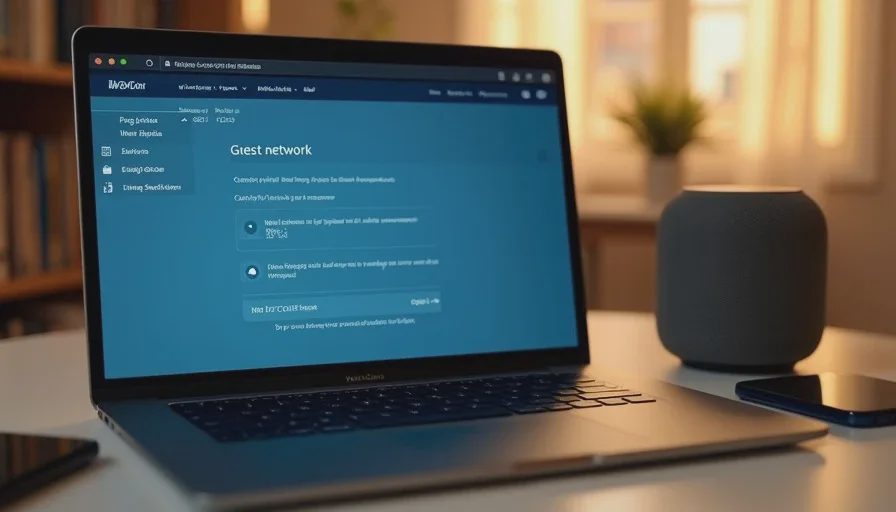
4. Create and Use a Guest Network
Most routers can run a second wireless network. Turn it on, give it a different name and password, and enable client isolation if the option exists. Then move two groups of devices onto it:
Visitors
Smart-home gadgets (TVs, speakers, cameras, thermostats, doorbells, plugs)
Devices on the guest network can reach the internet but cannot see or talk to the phones and laptops on your main network. A compromised smart TV or camera therefore cannot reach the devices that hold bank logins and family photos.
Risk level of running everything on one open network: medium to high. Isolation is the simplest way to contain a weak device.
5. Disable WPS and Remote Administration
WPS (Wi-Fi Protected Setup) was designed for easy button-press connections. It has a long-known weakness that can reveal the Wi-Fi password. Turn it off.
Remote administration (sometimes called remote management or WAN access) lets you change router settings from outside the house. Most families never need this. Leave it off unless you have a specific reason and understand the extra exposure.
These two switches take seconds and close two common attack paths.
Risk level of leaving both enabled: medium to high, especially on routers that still use default credentials.
What to Do After the Changes
Reconnect your devices to the main or guest network with the new passwords. Check the list of connected devices in the router interface and remove anything you do not recognize. Write the new admin password and the two Wi-Fi passwords into your password manager (or a secure household note).
If the router interface feels confusing, many internet providers now offer a mobile app that exposes the same five settings with clearer labels. Use whichever method gets the job done.
These five changes do not require new hardware or a monthly subscription. They simply stop the router from remaining the weakest link in an otherwise careful household. Once they are done, the network becomes a quieter, more predictable foundation for the rest of the family’s digital habits.
Make the safer choice the easier choice at the point where every device connects. That is the practical starting point for home-network safety.
The First-Hour Plan After a Phishing Link Is Clicked
This is the last
→Comments
Leave a comment
No comments yet.