Guest Wi-Fi, IoT Devices, and Why Your TV Does Not Need the Main Password
Putting smart TVs, speakers, cameras, and visitors on a separate guest network keeps a compromised gadget from reaching the phones and laptops that hold bank logins and family photos. Most routers already support this; enabling it is one of the highest-value changes a household can make.
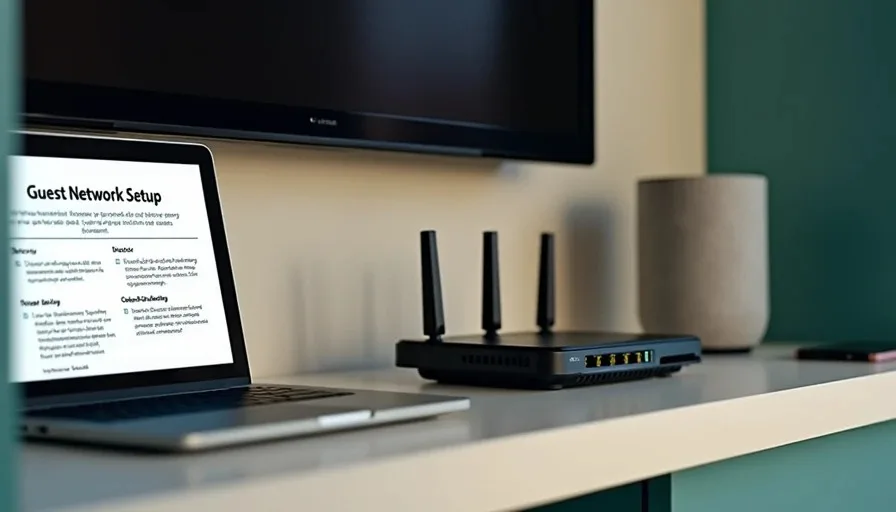
Most home networks treat every device as equal. The smart TV, the front-door camera, the voice speaker, the kids’ tablets, and the laptops that hold tax returns and photo libraries all sit on the same Wi-Fi with the same password. That convenience comes with a quiet cost. Many internet-connected gadgets receive infrequent security updates, ship with weak default settings, or simply were never designed to withstand targeted attacks. When one of them is compromised, it can often see and talk to every other device on the network.
A guest network solves this without requiring new hardware or advanced networking knowledge. It creates a second, isolated wireless network. Devices on it can reach the internet but cannot reach the phones, computers, and printers on the main network. Moving the riskier or less-trusted devices onto that second network contains the damage if something goes wrong.
Why the Main Network Password Should Stay Limited
Think of the main Wi-Fi password as the key to the rooms that hold valuables. Phones and laptops store banking apps, email, password managers, and personal photos. Shared computers may contain tax documents and work files. These devices need the strongest available protection and the least exposure to other equipment.
Smart TVs, streaming sticks, game consoles, smart speakers, cameras, thermostats, light bulbs, and appliances need internet access to function, but they do not need to talk to the devices that hold sensitive accounts. Visitors need internet access for a few hours; they do not need to see the household printer or the backup drive.
When everything shares one network, a vulnerability in a television or a cheap camera becomes a potential pathway to the more important devices. Network isolation removes that pathway.
What a Guest Network Actually Does
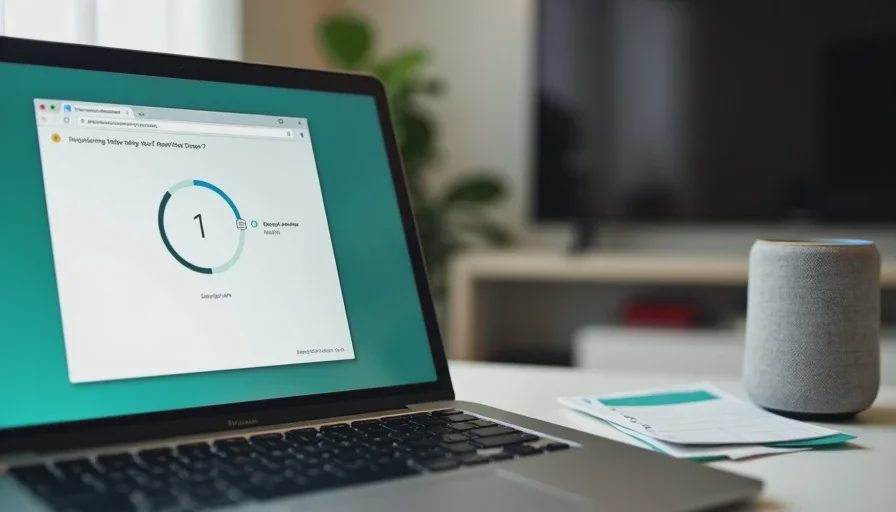
On most consumer routers the guest network is a second SSID (network name) with its own password. Traffic from devices on the guest network is kept separate from the main network. Many routers also offer a setting called client isolation or AP isolation; when enabled, devices on the guest network cannot even see each other. That extra step is useful for public-style access but less critical for a family that mainly wants to separate IoT gadgets from personal computers.
The result is simple:
Main network: phones, laptops, tablets used for personal accounts, printers, network storage.
Guest network: smart TVs, speakers, cameras, thermostats, streaming devices, visitors’ phones.
Internet works normally on both. Local access between the two groups is blocked.
How to Set It Up in Practice
Log into the router the same way you would for any other settings change (usually by typing 192.168.1.1 or 192.168.0.1 into a browser, or using the provider’s app).
Find the Guest Network or Guest Wi-Fi section. Turn it on.
Give it a clear name that is different from the main network (for example, “Household-Guest” instead of the same name with “_guest” tacked on).
Set a strong password different from the main Wi-Fi password. Store both in the family password manager.
Enable client isolation or AP isolation if the option exists and you want visitors or IoT devices fully separated from one another.
Save the settings and restart the router if required.
Then move devices one at a time. On each smart TV, speaker, camera, or streaming stick, forget the old network and join the new guest network with the new password. Do the same for any regular visitors’ devices when they arrive.
After the move, check that the devices still reach the internet and that the apps controlling them (camera apps, speaker apps, TV apps) still function. In almost every case they do, because they only need outbound internet access.
Which Devices Belong Where
Keep on the main network
Phones and tablets used by family members for email, banking, and personal accounts
Laptops and desktop computers
Network-attached storage or backup drives
Printers that need to be reached from personal computers
Move to the guest network
Smart TVs and streaming sticks
Smart speakers and displays
Security cameras and doorbells
Thermostats, light bulbs, plugs, and appliances
Game consoles (unless they need local network features you rely on)
Any device whose manufacturer has a history of slow security updates
Visitor phones and tablets
If a particular device must talk to a computer on the main network (some older printers or media servers), leave it on the main network and accept the trade-off, or look for a newer model that works through the cloud instead of local discovery.
Common Concerns and Practical Answers
“Will my phone still control the lights and the thermostat?”
Most modern smart-home systems work through the manufacturer’s cloud. The phone sends commands over the internet; the device receives them over the internet. They do not need to be on the same local network. Test after moving the device; the large majority continue to work.
“What about AirPlay, Chromecast, or screen mirroring?”
These features often rely on local network discovery. If you use them frequently, you may need to keep the TV or speaker on the main network or accept that casting will require a temporary change. Many families decide the isolation benefit outweighs occasional casting convenience.
“My router doesn’t have a guest network.”
Some older or ISP-supplied routers lack the feature. In that case the practical options are to enable any available “AP isolation” on the main network (weaker protection), to place the riskiest devices on a separate inexpensive travel router configured as a second network, or to plan a router upgrade when the current hardware reaches end of life.
“Is this the same as a VPN?”
No. A VPN encrypts traffic between a device and a remote server. A guest network isolates devices from each other inside the home. They solve different problems and can be used together if needed.
The Everyday Benefit
Once the guest network is running, the main Wi-Fi password can stay known only to the people and devices that actually need it. Visitors receive the guest password. New smart gadgets are joined to the guest network by default. A compromised camera or television has no easy path to the laptops and phones that matter most.
This single architectural change is one of the highest-value improvements available to a typical household. It requires no subscription, no extra software on phones, and only a modest amount of setup time. After the initial move of devices, maintenance is minimal.
The television needs internet access. It does not need the same network privileges as the computer that holds the family photo archive and the banking sessions. Separating them is a straightforward way to make the safer choice the easier choice for the entire household.
Helping an Older Parent Move to a New Phone Safely
Public Wi-Fi: What It Protects, What It Does Not, and When to Use Cellular Data
Public Wi-Fi is convenient but offers little privacy or security by defa...
Five Router Settings Worth Checking Tonight
Five high-impact router settings most families can change in under an ho...
Leave a comment
No comments yet.